Generate a client's compliance tasks and deadlines
Turn on a service for a client and let the system create the dated filing and payment tasks the client owes.
Who this is for: managers who set up the recurring filings and deadlines a client owes.
Why it matters: enabling a service tells ComptaFlow what the client owes; the dated tasks and their deadlines follow automatically from the tax rules. See understanding services and task generation and understanding fiscal deadlines.
Before you start
- The client must already exist in the system.
- Make sure the client's details that drive deadlines are correct first, especially the fiscal year-end and, for partnerships, the partner composition. These determine the dates that get generated. If the client has no recorded year-end, December 31 is used.
- For the source deductions (DAS) service, the frequency you pick is the client's remitter category: monthly for a regular remitter, quarterly for a small employer, twice monthly or weekly for the accelerated remitter thresholds, and annual for Revenu Québec's annual remitter. Each category gets its own remittance schedule. The dollar thresholds that decide a client's category are your judgment; the system does not enforce them.
Steps
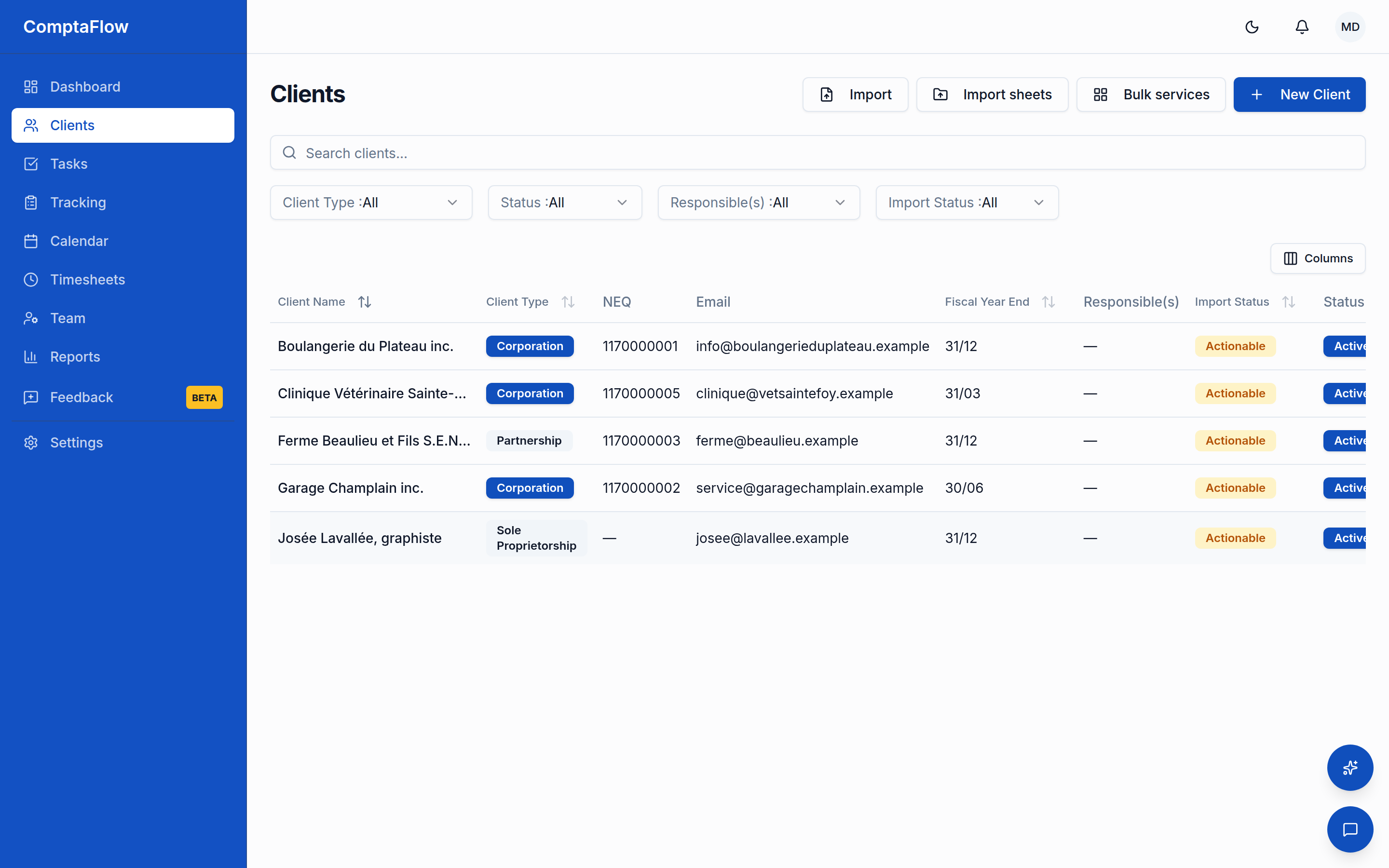
- Open the client you want to set up.
- Go to the client's Services tab.
- Enable the service you want the client to receive.
- The system creates the filing tasks (and a separate payment task when the payment date differs from the filing date) for the service's upcoming periods: the current occurrence for an annual filing, the next two quarters for a quarterly one, the next three months for a monthly one. As each future period approaches, its task appears automatically overnight — you never need to generate ahead. Each task gets a due date computed for the obligation, then rolled forward if it would land on a weekend or a holiday recognized by the agency that owns the obligation.
- Bookkeeping services can also run weekly or biweekly. Their tasks generate on a short rolling window of pay-period-style periods, like payroll, and their due date is an internal cadence, not a legal deadline: each period is due a set number of days after the period ends. The offset is adjustable per client on the Services tab (1 to 30 days; default 5, the Friday of the following week), and changing it regenerates the service's open tasks right away.
- On a service you can also set a standing office deadline rule: a number of days before the legal date (1 to 365). Every generated task then carries an office date, plain calendar subtraction from its legal date, and that office date becomes the working due date shown, sorted, reddened when late, and counted everywhere (grid, Suivi, dashboard, reminder emails), with the legal date kept visible beside it. Changing or removing the rule updates the service's open tasks immediately. Setting it requires the office deadline right (owners and managers by default), and an office deadline can never be later than the legal date.
- The new tasks appear in your task list. Each starts in the "not started" status and is assigned to the service's assignee, the person set for that service on the client's Services tab; if the service has no assignee, the tasks are created unassigned. The list shows open work due within the selected horizon (one month by default) — widen the due-date filter to see instances generated further ahead.
What can go wrong
- A deadline that lands on a Saturday, Sunday, or recognized holiday is moved forward to the next business day, and the moved date is the one you see. Each deadline uses the holiday calendar of the agency it belongs to: federal deadlines follow the CRA list, Quebec deadlines follow the Revenu Québec list, and a deadline shared by both agencies moves only when both are closed.
- An office deadline does not roll for weekends or holidays: it is the legal date minus the offset, straight calendar math. Only the legal date is business-day adjusted.
- Enabling a service never creates tasks for periods that are already over. To catch up a past filing or remittance that is still owed, create it from the Tasks page: choose "Service task (past period)", pick the client, the service, and the past periods you need (up to five years back) — the due dates are computed for you.
- Disabling a service removes its future, not-yet-finished tasks. Tasks you have already completed are kept as history.
- If you later change the client's fiscal year-end or partner composition, the client is flagged for recalculation and these tasks are regenerated to match.
- If you change a service's assignee later, every open (not yet finished) task of that service moves to the new person, including tasks that had been reassigned by hand, and the new assignee receives one summary notification (unless they opted out of assignment notifications). Finished tasks keep their history.
- Re-enabling or regenerating the same service does not create duplicate tasks. Periods that already exist are left as they are.
Limits
- Only upcoming tasks exist: the next occurrence of an annual filing, the next two quarters, the next three months (payroll, and weekly or biweekly bookkeeping, keep their own short windows). Future tasks appear automatically as their period approaches. Past periods are only created by you, deliberately, from the Tasks page.
- One-off (custom) tasks are never created by this process. They are created by hand.
- The bookkeeping due offset accepts 1 to 30 days; the office deadline offset accepts 1 to 365 days. The office deadline rule (and the per-task override on the task itself) requires the office deadline right, held by owners and managers by default.