Get around the app (dashboard, notifications, feedback)
Where you land, how the app keeps you informed, and where to send us your ideas.
Who this is for: all firm staff.
Steps
The dashboard

- After signing in you land on the dashboard: your at-a-glance counters — overdue tasks, deadlines in the next 7 days, and tasks completed this month — plus your task list. The numbers cover the tasks your role is allowed to see, and they count each task against its working due date: the firm's office deadline when one is set, otherwise the legal date.
Notifications and reminders
- The bell in the top bar shows your notifications (yours only), with mark-as-read and mark-all-read; the notifications page lists them all. In-app notifications are a plan feature.
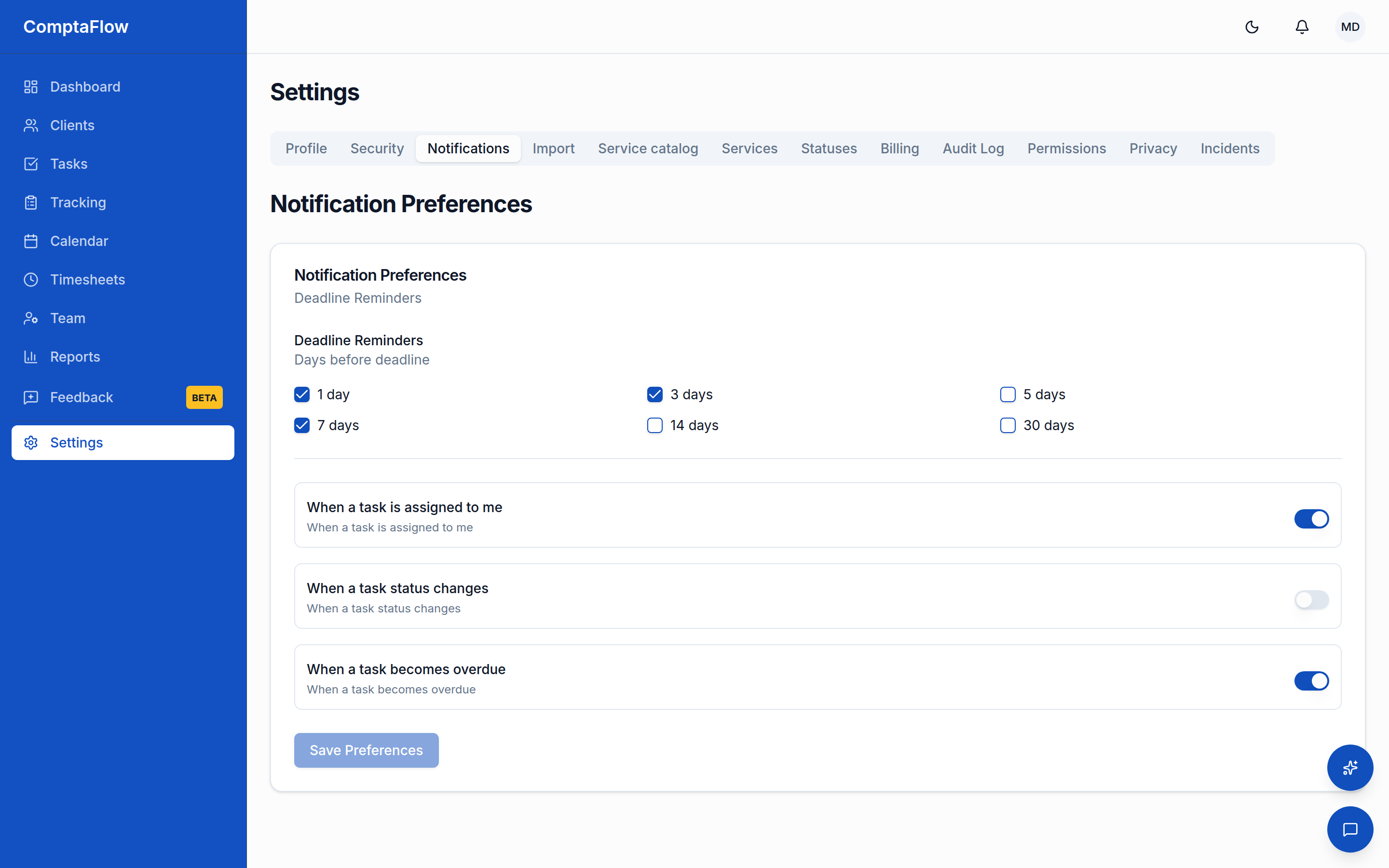
- Deadline reminders arrive when a task's remaining days match your configured lead times — by default 7, 3, and 1 days before the due date. Reminders and overdue alerts follow the task's working due date (the firm's office deadline when one is set, otherwise the legal date). Overdue alerts are opt-in and go to the task's assignee (or to all opted-in staff when the task is unassigned). You never get the same alert twice in one day.
- Tune both in Settings → Notifications (under My account in the settings sidebar): your own lead times (each between 1 and 30 days, at least one) and the overdue opt-in. These are personal settings; each teammate has their own.
Email notifications
- The same page carries an Emails section with a toggle per event type: Tasks assigned (an immediate email when tasks are assigned to you), Timesheets (submissions to approve for managers, approvals and rejections for employees, plus a Friday reminder if you still hold draft entries for the week), Daily summary (one email per day with upcoming deadlines, overdue tasks, and unread team messages), and Privacy requests (Law 25) (alerts for owners when a request is filed and before its legal deadline). During the beta, the privacy alerts are on by default and the other types are opt-in.
- These emails point you back into the app: they carry counts and colleague names, never client data or message contents. Essential emails (account, billing, security) are not affected by these toggles, and the promotional-email unsubscribe link does not affect them either.
Sending feedback
- Open Feedback in the sidebar to post bugs and ideas on the product board. If the embedded board does not load, a direct link opens it in a new tab.
What can go wrong
- If reminder settings will not save: every value must be between 1 and 30 days, and you need at least one.
- If you see no notifications features: your firm's plan does not include in-app notifications.
- If you expected an email and none arrived: check its toggle in Settings → Notifications. During the beta, all email types except the privacy alerts are off until you turn them on.
Limits
- Notifications are personal: you only ever see your own, and your preferences apply to you alone.
- Reminder lead times: integers from 1 to 30 days, at least one required (default 7, 3, 1).
- Email toggles are per person and per event type. Essential account, billing, and security emails have no toggle, and the daily summary arrives at most once per day.