Add and update a client
Create a new client or update an existing one, the record that drives that client's deadlines and tasks.
Who this is for: managers (and owners) who maintain the firm's client list.
Before you start
- You need to be signed in. If your session has expired, you are sent to the login screen before the client form opens.
- You see and work with your own firm's clients only.
Steps
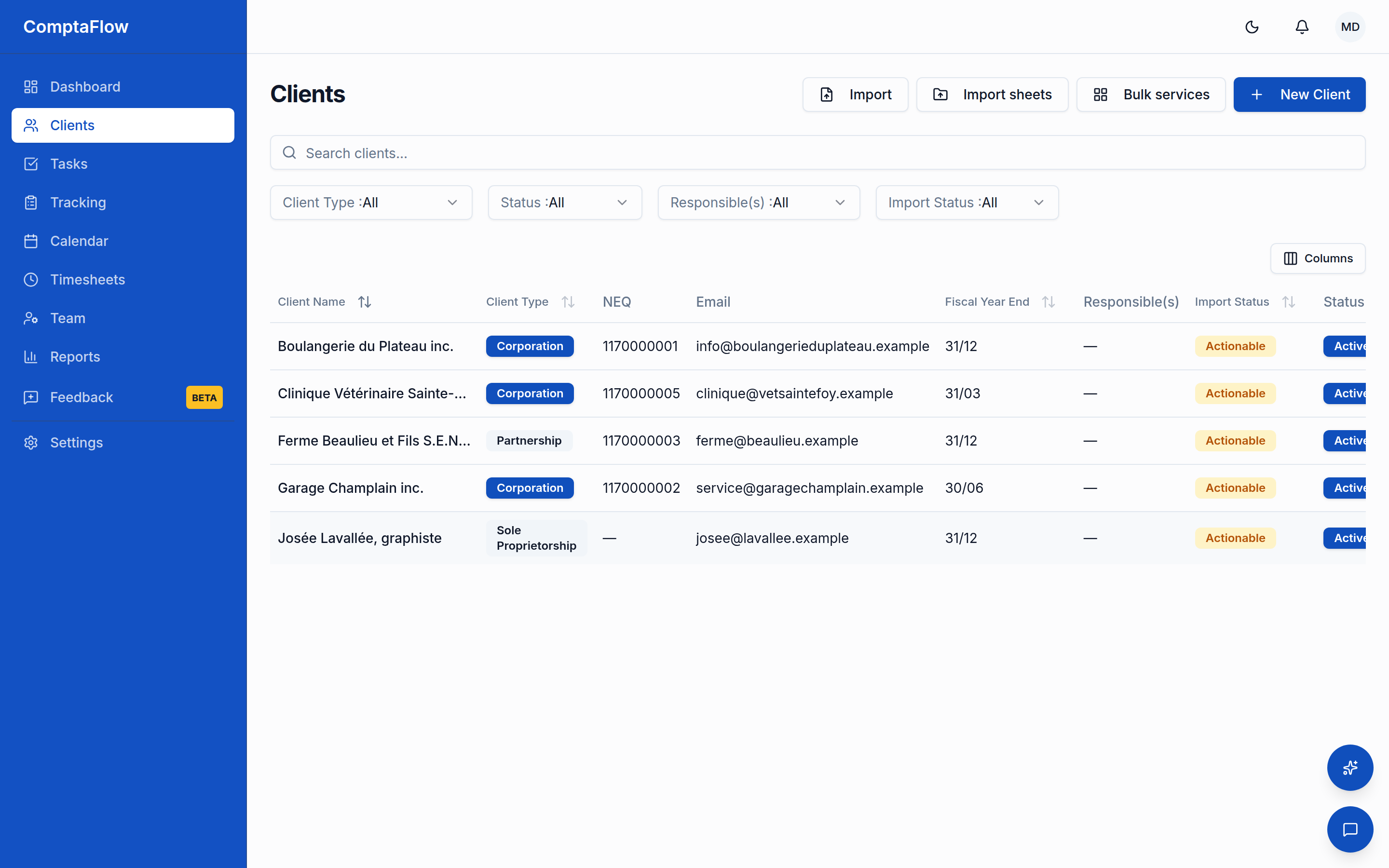
- Open the new-client screen to create a client, or open an existing client to edit it.
- Fill in the basic information. Enter the client's name (2 to 200 characters) and choose a client type (corporation, sole proprietor, partnership, trust, individual, or non-profit). The type is required because it determines which compliance tasks and deadlines apply to the client.
- Fill in the identifiers if you have them. The NEQ (Quebec enterprise number) must be exactly 10 digits when entered. The business number (federal) must be 9 digits, optionally followed by a 2-letter program code and a 4-digit reference. Both are optional.
- Fill in the remaining fields that apply to the client: dates, address, tax numbers, and the Responsable(s), the one or more people responsible for the communication with this client. Responsables are informational: choosing them never changes who tasks are assigned to (task assignment is set per service on the client's Services tab). The fields and sections shown adapt to the client type you chose, so you only see what is relevant to that type. Among the business flags, Interjurisdictional carrier (IFTA) is offered to corporations, sole proprietors, and partnerships, and Revenu Québec attestation required to those types plus non-profits; turning one on makes the matching recurring obligation apply to the client (the quarterly IFTA return, or the RQ attestation tracking).
- If you change the client type while filling the form, a notice tells you the type changed, and the visible fields update to match the new type.
- Click Save. The system checks the whole entry before saving anything.
- You see a success confirmation. When you create a client, you are returned to the client list.
- On an edit, if you changed a deadline-affecting field (such as the year-end date or partner composition) or an applicability flag, the system offers to recalculate the client's compliance tasks. Choose whether to proceed. Changing the Responsable(s) never prompts anything: it does not touch the client's tasks.
- On the client's Services tab, a service's settings can carry two standing deadline settings, each saved with its own save button. The Office deadline (days before the legal date) field (1 to 365, or empty for none) dates every task generated for that service that many days before the legal date; the legal date itself never changes. You see this field only if you hold the office-deadline right (owners and managers unless your firm configured otherwise). For a bookkeeping service on a weekly or biweekly frequency, Due (days after the period) sets how many days after each period's end the task is due (1 to 30, default 5, the Friday of the following week).
- On Pro plans and up, the client's file also has a Factures tab listing the client's invoices, topped by a strip showing the outstanding balance, the number of overdue invoices, and the unbilled approved time. Anyone who sees the tab sees the strip; the Bill time action and invoice management appear only if you hold the invoicing right (owners and managers unless your firm configured otherwise).
- On the Portail tab, a Mobile app card holds one copyable block of instructions, in French and English together, to send to the client so they can install your firm's portal app on their phone. If your firm has not uploaded a logo, a hint tells you the installed icon will show the firm's initials, with a link to upload one in Settings → Invoicing.
Role variations
- By default, owners and managers can create, update, and delete clients while other firm members can only view them. Each of the three rights is configurable per role by the firm's owner in Settings → Permissions.
- Some sections are hidden from roles that should not see them, including tax numbers, business flags, and notes. If you do not see one of these sections, your role does not have access to it.
- Stored portal credentials (such as ClicSEQUR and bank logins) can be read and written only by owners and managers.
What can go wrong
- If an entry is invalid: the save is rejected, the form shows the first problem to fix, and nothing is saved. Correct the highlighted field and save again.
- If you try to leave with unsaved edits: a confirmation dialog appears, and a "● modified" indicator marks that you have unsaved changes. Confirm to discard them or stay to keep editing.
- Deleting a client removes its tasks, contacts, credentials, services, and emails. If a record protected by the system still depends on the client (for example, the client has invoices), the deletion is blocked and you are told why instead of seeing a technical error.
- If you try to use spreadsheet bulk import on a plan that does not include it: the import is unavailable. Bulk import requires a plan that includes Excel import.
Limits
- A client name must be 2 to 200 characters.
- Each client has exactly one client type from the fixed set listed above.
- NEQ, when entered, is exactly 10 digits; the federal business number is 9 digits (optionally with a 2-letter program code plus 4-digit reference).
- Bulk import caps a single import at 500 clients and requires a plan that includes Excel import.
- A service's office deadline is 1 to 365 days before the legal date and is editable only with the office-deadline right; the bookkeeping due offset is 1 to 30 days after the period end (default 5).
- The Factures tab requires a Pro plan or higher.
Reference
| Field | Rule |
|---|---|
| Name | Required, 2 to 200 characters |
| Client type | Required, one of: corporation, sole proprietor, partnership, trust, individual, non-profit |
| NEQ | Optional, exactly 10 digits |
| Business number | Optional, 9 digits (optionally + 2-letter program code + 4-digit reference) |