Follow a service's deadlines in Suivi
See where every client stands on one service, nearest deadline, checklist progress, status, and assignee, and surface the late backlog.
Who this is for: managers and owners tracking a service across the client base; employees use the same view (often with "mine only") for their own slice.
Why it matters: every date in this grid is computed from the CRA and Revenu Québec rules, and the grid itself is the living version of the firm's old tracking workbooks. See understanding fiscal deadlines and understanding Suivi.
Before you start
- You need to be signed in. You see your own firm's clients and tasks only.
- Suivi tracks recurring services. One-off tasks live on the Tasks board instead.
Steps
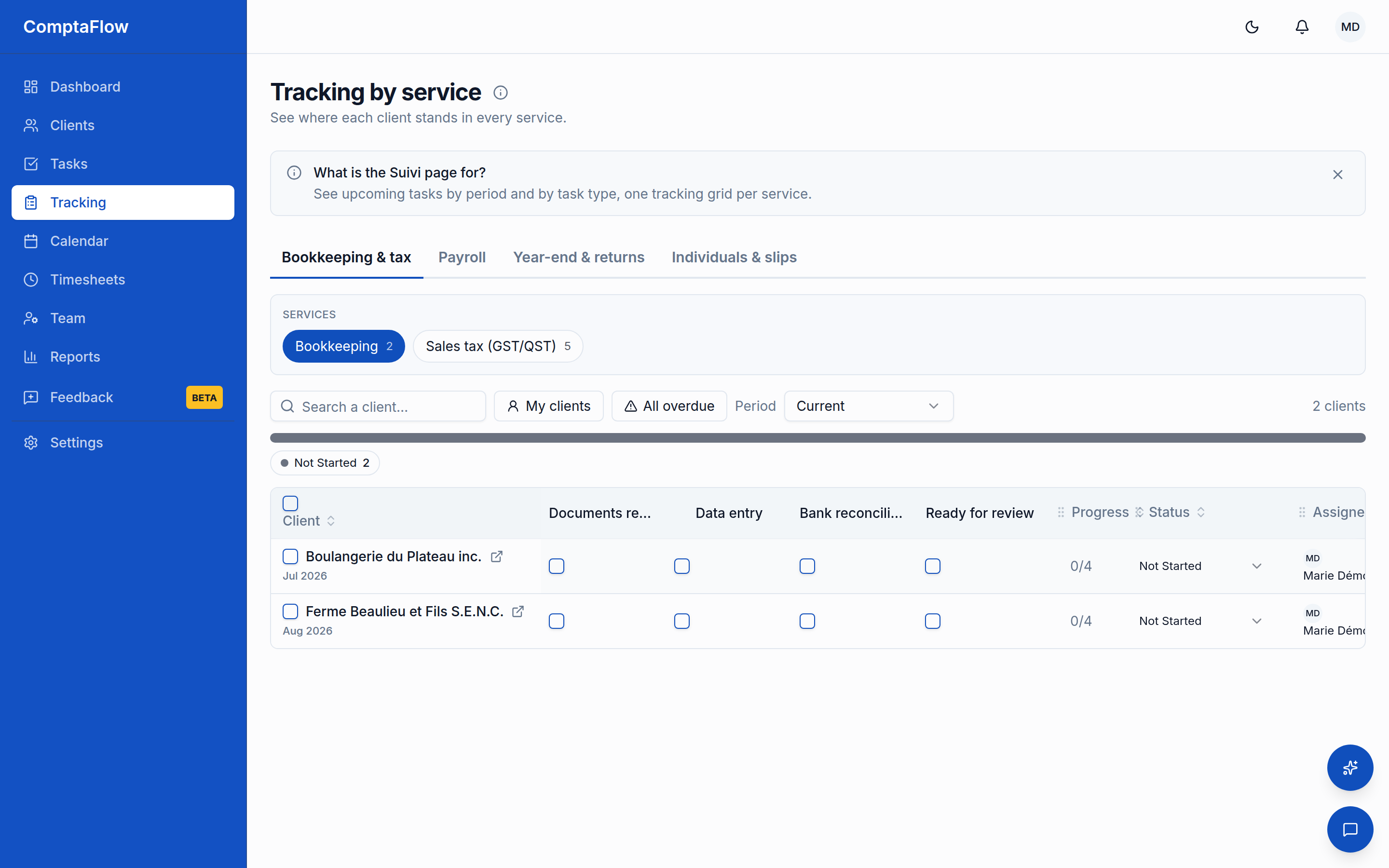
- Open the Suivi page and pick a service: first its category tab, then the service.
- Read the grid: one row per client, showing that client's nearest upcoming open task for the service. The row shows the client, one column per checklist step, then progress, status, assignee, and due date. A badge on the row counts that client's open past-due periods, if any. The due date shown is the working date: your firm's office deadline when the task carries one (the legal date then shows beneath it), otherwise the legal date. Lateness, the past-due counts, and the service tabs' overdue badges all follow that same working date.
- Narrow the grid as needed:
- Search by client.
- Mine only keeps rows assigned to you.
- For annual and monthly services, pick the year/month you are tracking.
- Click a checklist step's column header to cycle it through all, finished, and not finished. One step filters at a time; a row that does not have the step counts as not finished. Your filters are remembered per service while you work.
- Toggle late only to expand the grid to one row per open past-due task, so a client several periods behind shows every late period. A notice reminds you the view changed, with a link back.
- Click a client's name to open the task in a window over the grid (middle-click or Ctrl/Cmd-click opens the full task page instead). The client's profile is one click away via the small link icon beside the name.
- Act directly in the grid: change status or assignee inline and tick checklist steps. They behave exactly as on the Tasks board, including the completion timestamp when a task reaches a completion status. A ticked step shows who ticked it. The assignee picker offers active team members only; a task still assigned to a deactivated member keeps showing their name marked "(inactive)".
- Keep the client context on the row itself. The note column carries the service's standing note for that client; it opens in a popover that also manages the row's reminders, amber chips with an optional start date that you resolve in one click when handled.
- Watch the row markers. A paused service stays visible, greyed out with its pause reason, sits in its own bucket, and is left out of the overdue counts (a toggle hides paused rows entirely). On payroll rows, a jour férié badge flags a pay period containing a statutory holiday for the client's province, along with the client's standing answer on paying it. An owner or manager can also post a banner above the grid for the whole group, with an optional expiry.
What can go wrong
- If a service does not appear in the tabs: some task types are deliberately excluded from Suivi tracking.
- If a saved step filter stops applying: the service's checklist template changed and the step no longer exists; the stale filter is dropped rather than misapplied.
- If the grid seems to change rows after a refresh: it does not. The displayed task per client is picked deterministically (working due date, then period start), so a checklist tick never appears to undo itself.
- In late-only mode with a search active: the notice tells you the late view is scoped to your search.
Limits
- The default view shows one row per client (its nearest-due open task); only the late-only mode expands to every past-due period.
- The client column stays pinned; checklist columns keep their workflow order. Only the trailing columns (note, progress, status, assignee, due) can be reordered.
- The office deadline itself is set from the task or from the client's service, not from this grid; here it is what the due date column reflects when present.
- Group banners are posted by owners and managers.