Work my tasks day to day
Find your open work, move tasks through your firm's statuses, tick checklists, and comment, all from the task board.
Who this is for: all firm staff. Creating one-off tasks and bulk actions are owner/manager territory; see Role variations.
Why it matters: the tasks on this board are generated from each client's services, with deadlines computed from the tax rules. See understanding services and task generation.
Before you start
- You need to be signed in. You see and work with your own firm's tasks only.
Steps
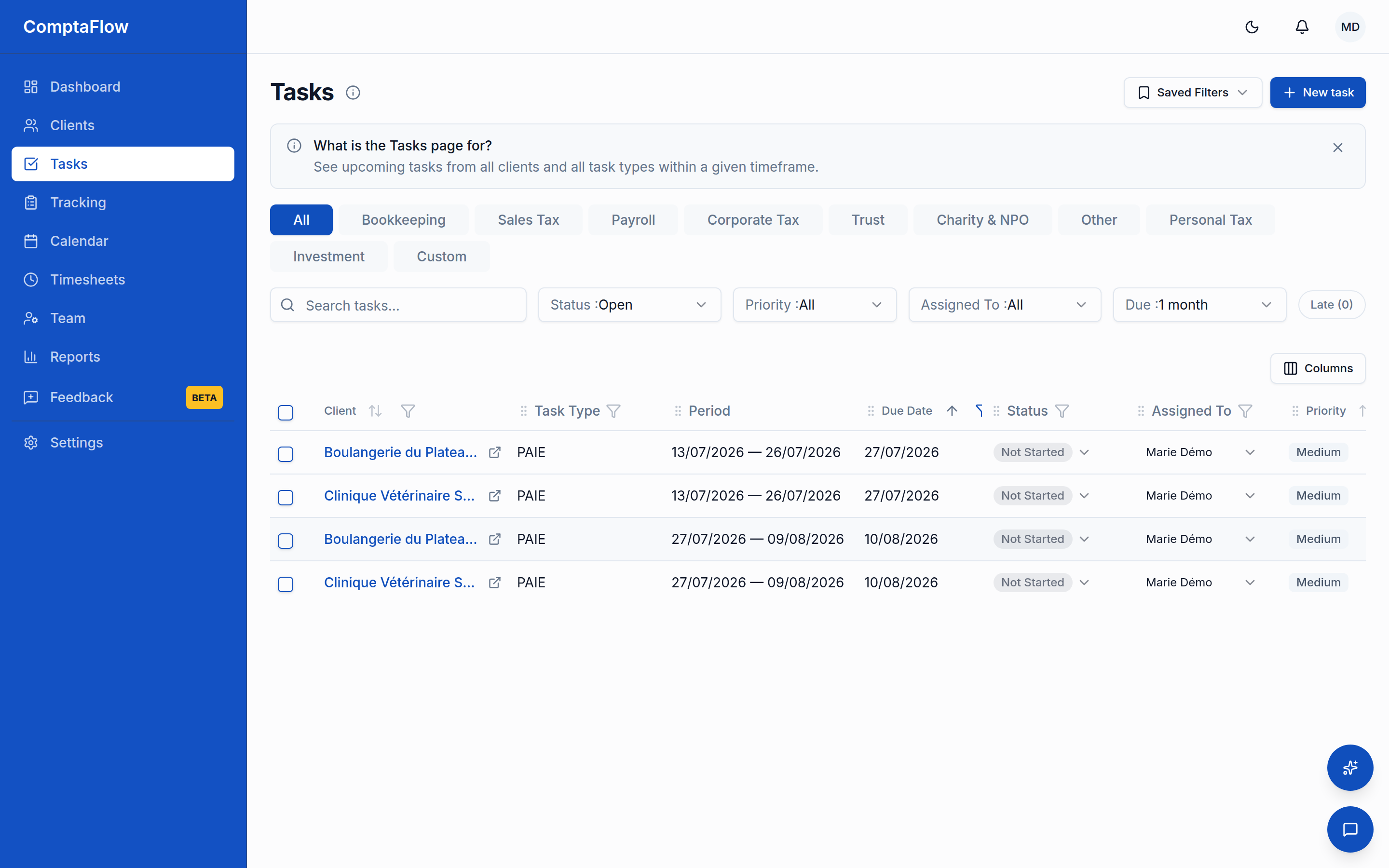
- Open the Tasks page. By default the list shows open work only, up to a due-date horizon ahead of today. Anything past due always appears, with its due date shown in red (the red date itself is the late marker); completed tasks are hidden until you ask for them through the status filter.
- Narrow the list with the Category dropdown in the toolbar. It is grouped exactly like Suivi: the four service groups sit at the top level and are selectable as a whole, with each group's finer categories nested beneath, and Toutes and Personnalisées bracket the list. Personnalisées gathers one-off tasks and your firm's own custom services.
- Save the views you keep coming back to. Set your filters, then use Save Filter: saved filters appear as one-click chips in the row above the toolbar, on every plan. The chip matching your current view is highlighted, and hovering a chip reveals rename and delete. They are personal and saved with your account, so they follow you across devices.
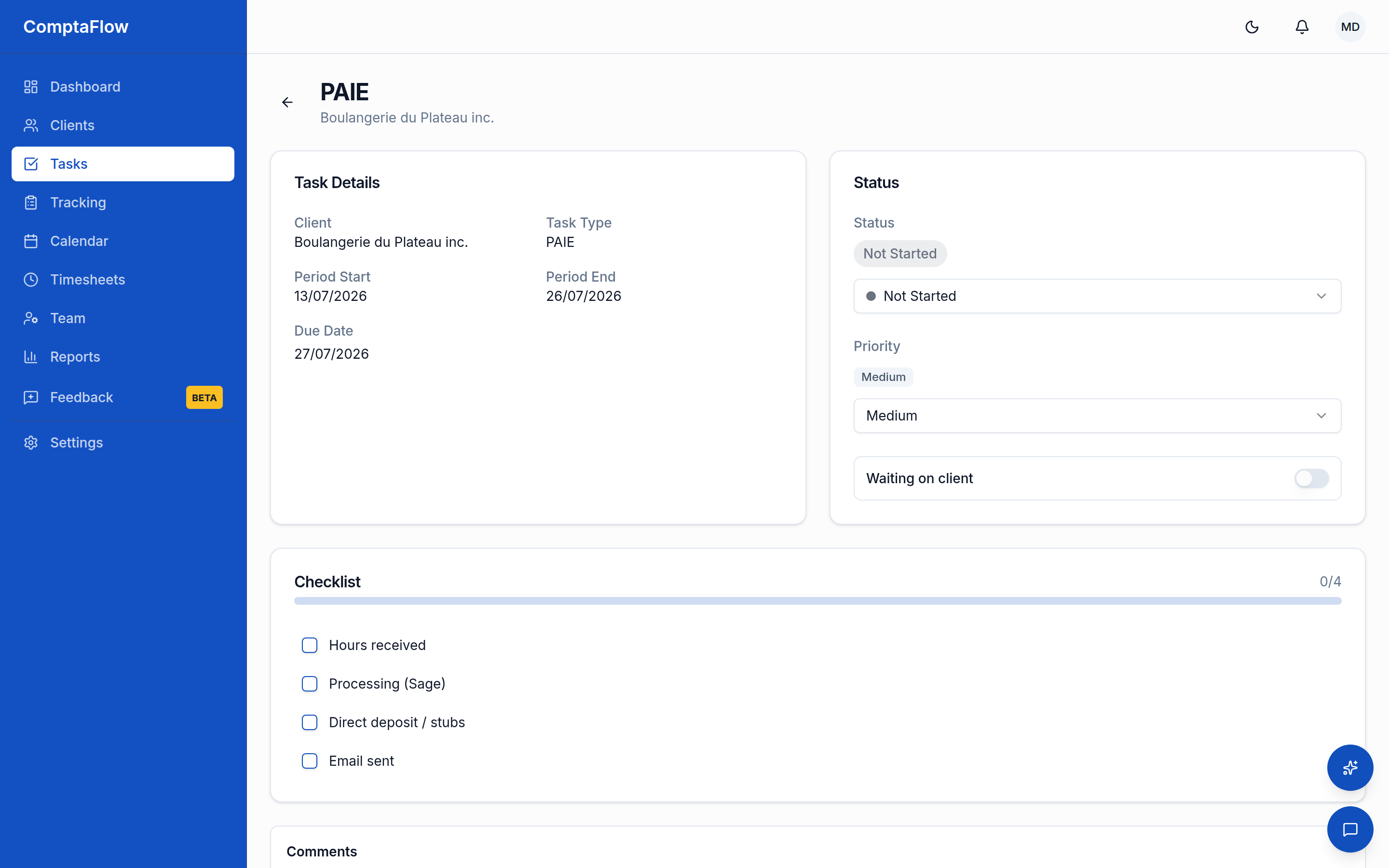
- Click a task row to open it in a window over the list, a compact single-column view with the actions at the top. You can keep working the list when you close it. The client's name inside the task links to the client's profile.
- Change the status from the task window or directly in the grid. You can move a task to any of your firm's statuses, in any order. Moving it to a completion status records the completion time; moving it back clears it. If your plan includes timesheets, completing a task offers to log your time first (you can skip).
- Work the checklist: tick a step when it is done. Each tick records who did it and when; unticking clears that.
- Comment on the task. Comments form a thread; adding one never overwrites what was written before. You can also type a comment directly in the grid's comment column, and give the task a highlight color (six fixed colors, visible to the whole firm).
- Set the assignee and priority (low, medium, high, critical) as the work demands. Assigning the task to someone else notifies them in the app (and by email if they turned on assignment emails in their notification settings); assigning yourself or unassigning notifies no one.
- If the task is stuck on something outside your control, set the blocked condition with a reason. It is independent of the status and records since when the task has been blocked; clear it when the blocker is gone.
- Watch the due date column: a task can carry a firm office deadline, an internal target date earlier than the legal deadline. When one is set, it is the date the list shows, sorts by, and reddens when late, and the legal date stays visible beneath it.
Role variations
- As an owner or manager: you can also create tasks with the New task button, two ways: a free-form one-off task, or a catch-up on a past period of a real service. The catch-up mode lists the elapsed periods (up to 5 years back) with their real, holiday-adjusted deadlines, and creating one never enrolls the client in automatic generation.
- As an owner or manager: with a plan that includes bulk actions, select several rows and change status, assignee, or priority at once, or delete one-off tasks.
- As an owner or manager (or anyone granted the office deadline right): set or clear the task's office deadline in the task window. It can never be later than the legal due date, and the legal date itself is never editable.
- As an employee: you cannot create, edit, or delete one-off tasks.
What can go wrong
- If you try to edit or delete a generated (recurring) task: it is refused. Generated tasks are owned by the automatic generation; only one-off tasks can be edited or deleted.
- If a task looks overdue: overdue is computed, not a status. A task shows its due date in red when that date has passed and it is not in a completion status; there is no separate late badge. A task with an office deadline goes red against that date, even though its legal deadline is still ahead. Completing the task clears the late state.
- If you do not see bulk actions or advanced grid filters: your firm's plan does not include them. With the advanced grid, the client and task type columns filter through searchable multi-selects, so you can pick several clients or task types at once. Saved filters are not plan-gated; they are available to everyone.
- If a first-time explainer appears: it distinguishes the Tasks board from the Suivi view. Dismissing it is remembered for you.
Limits
- Only owners and managers can create, edit, or delete one-off tasks.
- Past periods can be created up to 5 years back, and only by owners and managers.
- Status changes, priority, comments, and checklists are open to all staff. Assigning a task to someone else requires the assign right (owners and managers by default; without it you can still pick up an unassigned task or hand back your own). Which tasks you SEE at all can also be scoped by your firm's owner: all firm tasks (the default), your own plus unassigned, or your own only — the same scope applies on the board, Suivi, the calendar, the dashboard, and reports.
- Highlight colors come from a fixed palette of six (red, orange, yellow, green, blue, purple).
- Assignment pickers and people filters offer active members only. A deactivated member's name stays visible on past work, marked "(inactive)", and a task currently assigned to a deactivated member keeps showing that assignee.
- Setting or clearing an office deadline requires the office deadline right (owners and managers by default; the firm owner can grant it per role). An office deadline can never be later than the legal due date. When set, it is the date used for sorting, the red late marker, the dashboard counts, and the deadline reminder emails; the legal date stays displayed beside it.
- Saved filter names are 1 to 60 characters and must be unique among your own saved filters.
Reference
| Field / option | What it does | Notes |
|---|---|---|
| Status | Where the task sits in your firm's workflow | Any status, any order; completion statuses stamp the completion time |
| Priority | low / medium / high / critical | Informational ordering |
| Blocked condition | Marks the task blocked, with a reason | Independent of status; records since when |
| Office deadline | Firm-owned working date, earlier than the legal deadline | Right-gated; never later than the legal date; becomes the date shown, sorted, and reddened, with the legal date kept beside it |
| Highlight color | Firm-wide color flag on the task | Six fixed colors, or none |
| Comment | Appends to the task's thread | Never overwrites; visible count in the grid |