Set up your firm (statuses, services, permissions)
Shape ComptaFlow to your practice: your task statuses, your service catalog and checklists, and what each role can see and do.
Who this is for: owners, and managers for the parts their permissions allow. Billing, privacy requests, incidents, and the disclosure page are the owner's alone; the permissions page belongs to the owner, plus any manager the owner delegates it to.
Why it matters: the catalog and checklists you configure here determine what gets generated for every client, and which parts of the deadline rules stay shared on purpose. See understanding services and task generation.
Before you start
- You need to be signed in as an owner or manager. Settings pages are grouped into four categories, shown as a sidebar on the left on desktop and a collapsible menu on mobile: My account (Profile, Security, Notifications), App configuration (Service catalog, Services, Statuses, General time, Invoicing, Useful links), Administration (Import, Billing, Audit Log, Permissions), and Compliance (Law 25) (Disclosure, Privacy, Incidents).
- Which pages you see depends on your role: billing, privacy requests, incidents, and disclosure are owner-only; permissions shows for the owner and for managers the owner has delegated permissions management to; import and audit appear only if your role's permissions allow them. A category appears only when at least one of its pages is accessible to you.
Steps
Statuses
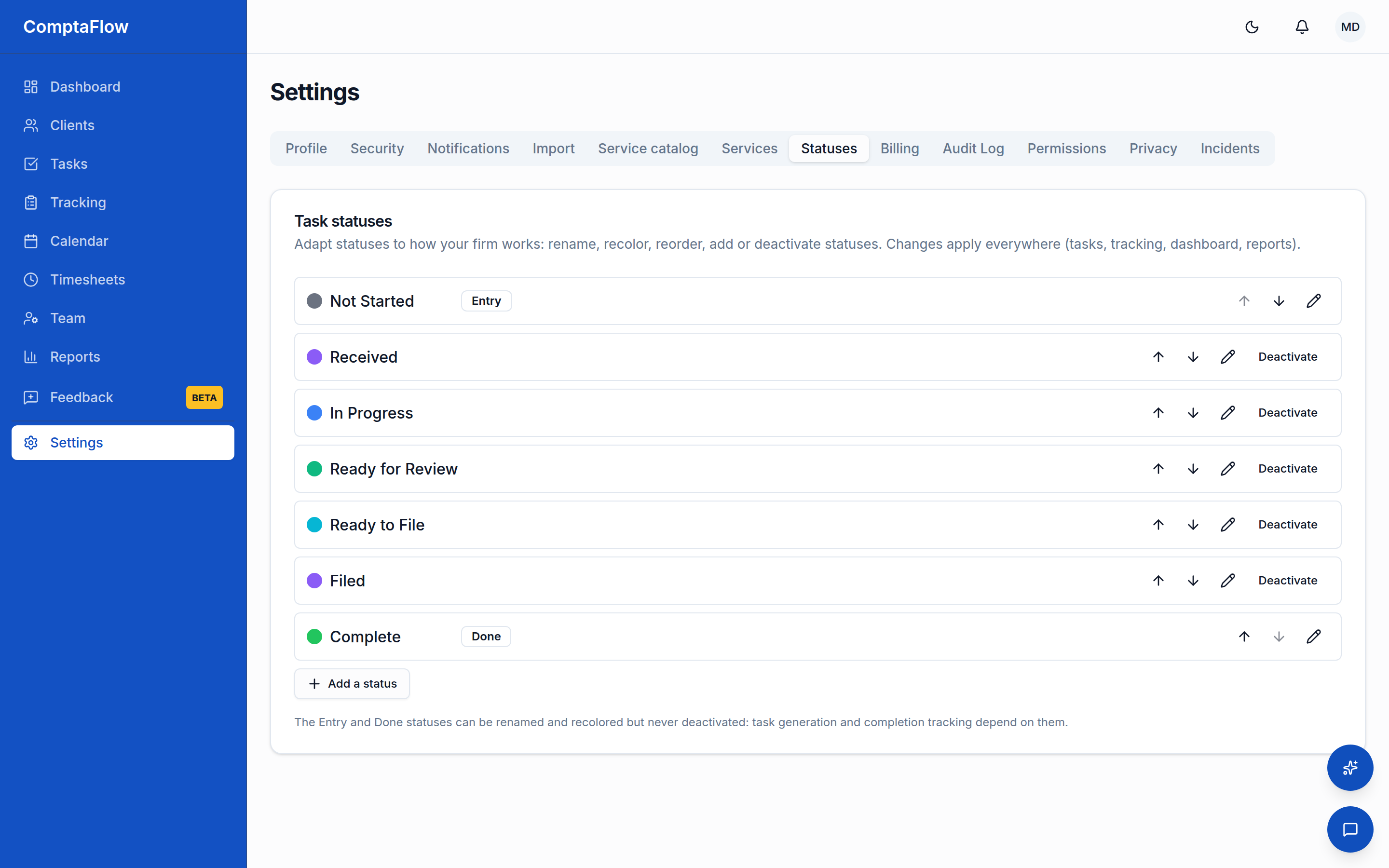
- Open Settings → Statuses (under App configuration). These are the steps a task moves through on your board and in Suivi.
- Add a status, rename any status in both French and English, change its color, and drag to reorder. Available on every plan.
- To retire a status, deactivate it: it disappears for new use, but tasks already in it keep it, and you can reactivate later. Nothing is force-migrated.
Services and checklists
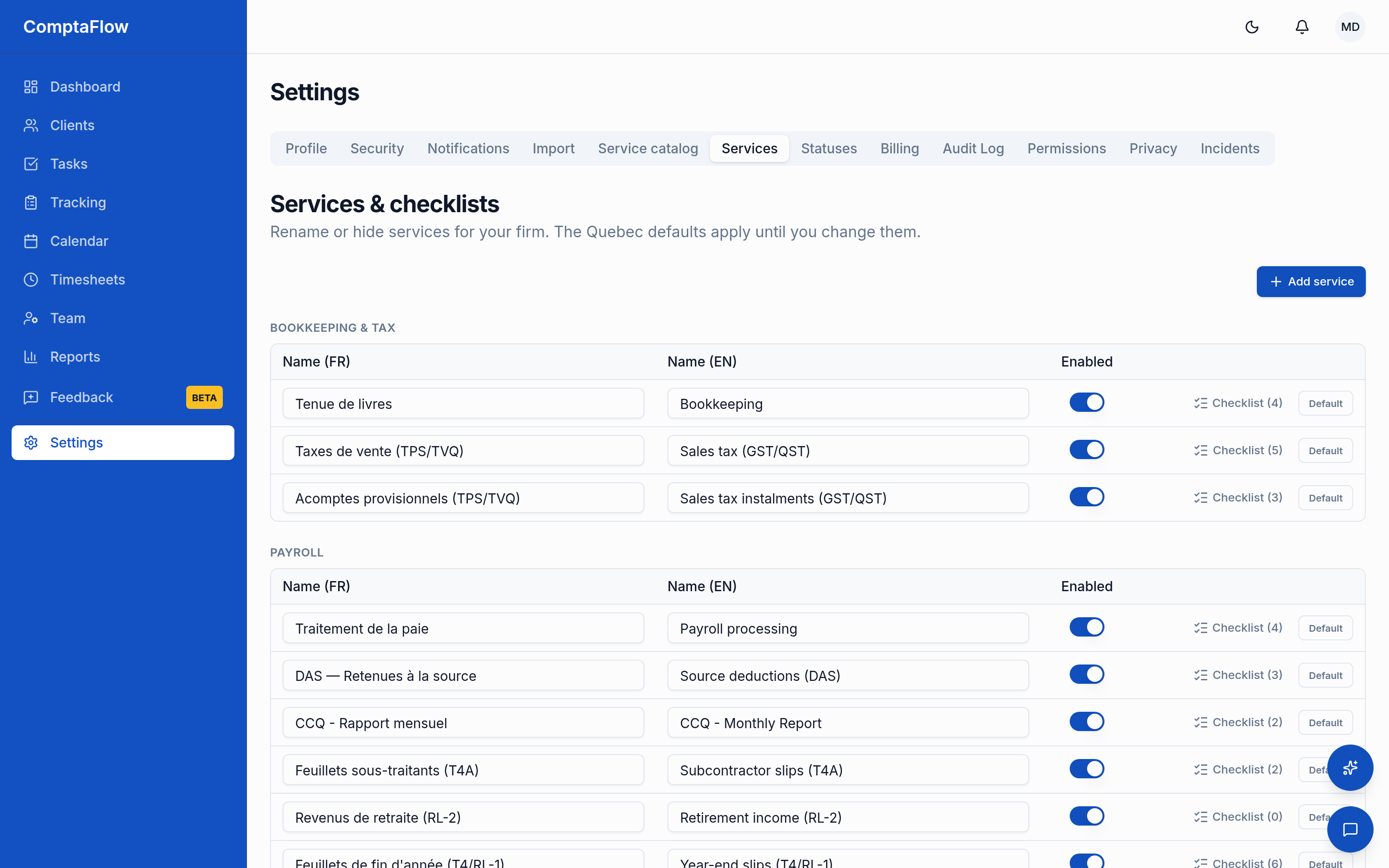
- Open Settings → Services (under App configuration). You start from the standard Quebec catalog; anything you change is your firm's own layer on top of it.
- Rename a service (both languages), change its category or order, or hide it — a hidden service stops generating tasks and disappears from pickers (clients that already have it keep it). You can also add your firm's own custom services. Service codes and their frequencies are fixed.
- Edit a service's checklist template to change the steps every new task of that service starts with. When you save, a warning tells you the new steps will also be applied to every unfinished task of that service — finished tasks and steps someone already checked keep their recorded values.
Priced catalog
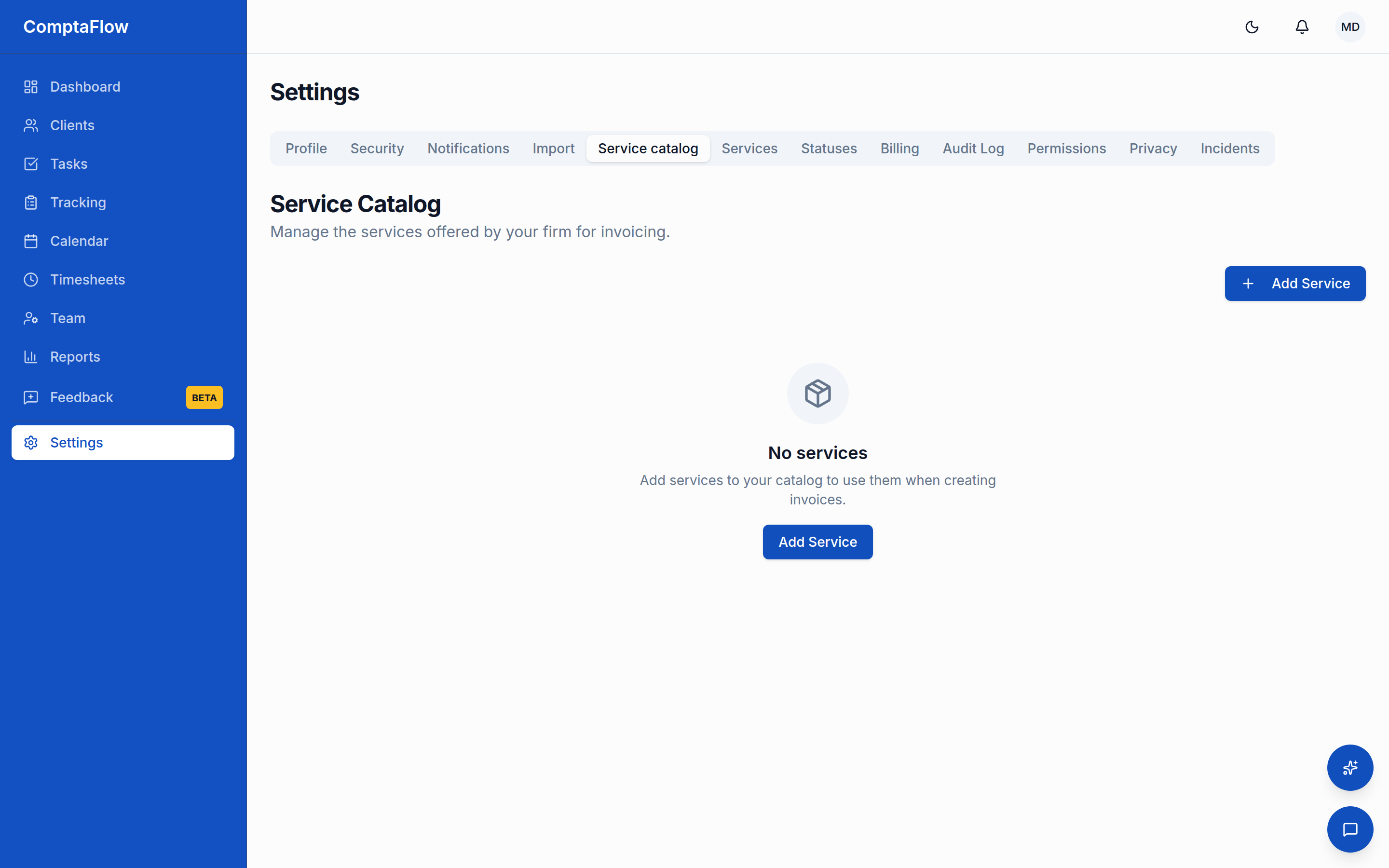
- If your plan includes the service catalog, open Settings → Service catalog (under App configuration) for the billable side: service items, rates, and packages.
Invoicing settings
- If your plan includes client invoicing (Pro and up), open Settings → Invoicing (under App configuration, managers and up) to configure the firm identity printed in the header of every invoice, the GST/QST numbers and rates, the numbering prefix and defaults, and the firm logo (a PNG, JPEG, WebP, or SVG image, 2 MB maximum). One logo serves everywhere: it appears on your PDF invoices and as the icon of the portal app your clients install on their phones. Uploading, replacing, or removing the logo requires the invoicing right.
Role permissions
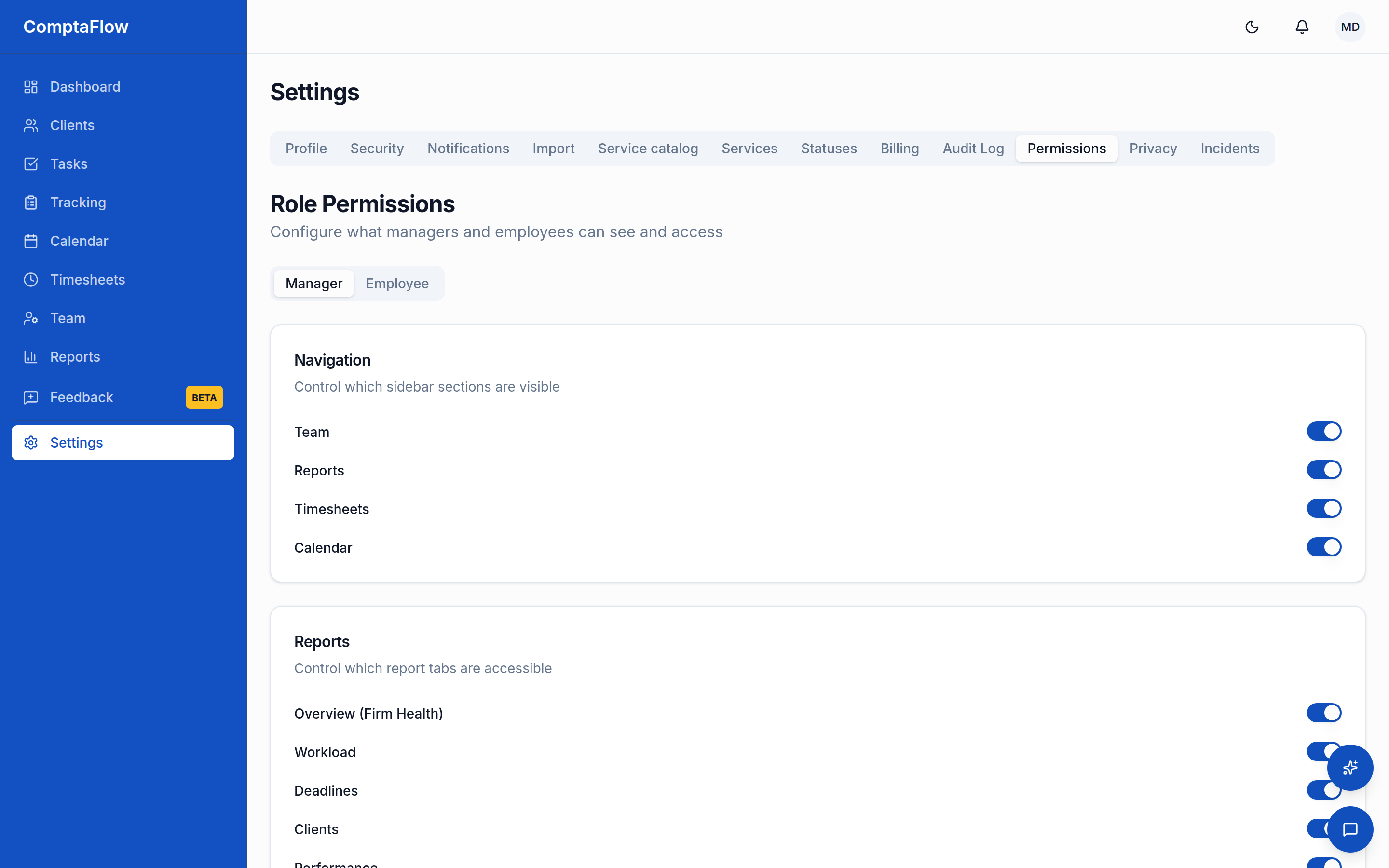
- As the owner, open Settings → Permissions (under Administration) to decide what managers and employees can see AND do. Per role you control: sidebar sections (team, reports, timesheets, calendar), report tabs, import and audit settings, which client fields the role may view — and the action rights: task visibility (all firm tasks, own plus unassigned, or own tasks only — applied on the board, Suivi, the calendar, the dashboard, reports, and the AI assistant), assigning tasks to others, creating and deleting one-off tasks, setting the office deadline on system-generated tasks, inviting teammates, changing member roles (managers at most), approving and viewing others' timesheets, editing others' entries, creating, editing, or deleting clients, and managing invoicing (creating, sending, marking paid, voiding, and running the monthly billing). Your changes overlay the defaults (which reproduce the classic owner/manager rules), and the owner always keeps full access to everything.
- Optionally, on the manager tab, switch on Manage employee permissions (delegation) to let managers open this page too. A delegated manager can change employee rights only: manager rights and the delegation switch itself stay owner-only.
Role variations
- As a manager: you can work the statuses, services, and invoicing pages if your permissions allow; you cannot open billing, privacy requests, incidents, or disclosure. You can open the permissions page only if the owner delegated it to you, and then you can edit employee rights only.
What can go wrong
- If you try to deactivate the entry or completion status: it is refused. Those two anchor the workflow (new tasks start in the entry status; the completion status stamps the completion time); you can rename or recolor them, never remove them.
- If someone without permissions access opens the page: an access-denied notice shows instead of the editor, and any attempted change is rejected. A delegated manager who tries to change manager rights or the delegation switch finds them read-only, and the server ignores such changes anyway.
- If the catalog pages say the feature is unavailable: your plan does not include the priced service catalog.
- If the invoicing page says the feature is unavailable: client invoicing is available on the Pro plan and above.
Limits
- Entry and completion statuses cannot be deactivated and their roles cannot be reassigned.
- Service codes, default frequencies, and allowed frequencies cannot be changed per firm; name, category, order, visibility, and checklist template can.
- Role permissions are edited by the owner, plus delegated managers for employee rights only. The owner's own access is never reducible, employees can never receive the change-roles or manage-permissions rights, and every right you leave untouched keeps its classic default.